Prerequisites
Before you begin, you’ll first need to choose a method of authentication with AWS from below.- Method 1: Assume Role (Recommended)
- Method 2: Access Key
Create the Managing User IAM Role
-
Navigate to the Create IAM Role page in your AWS Console.
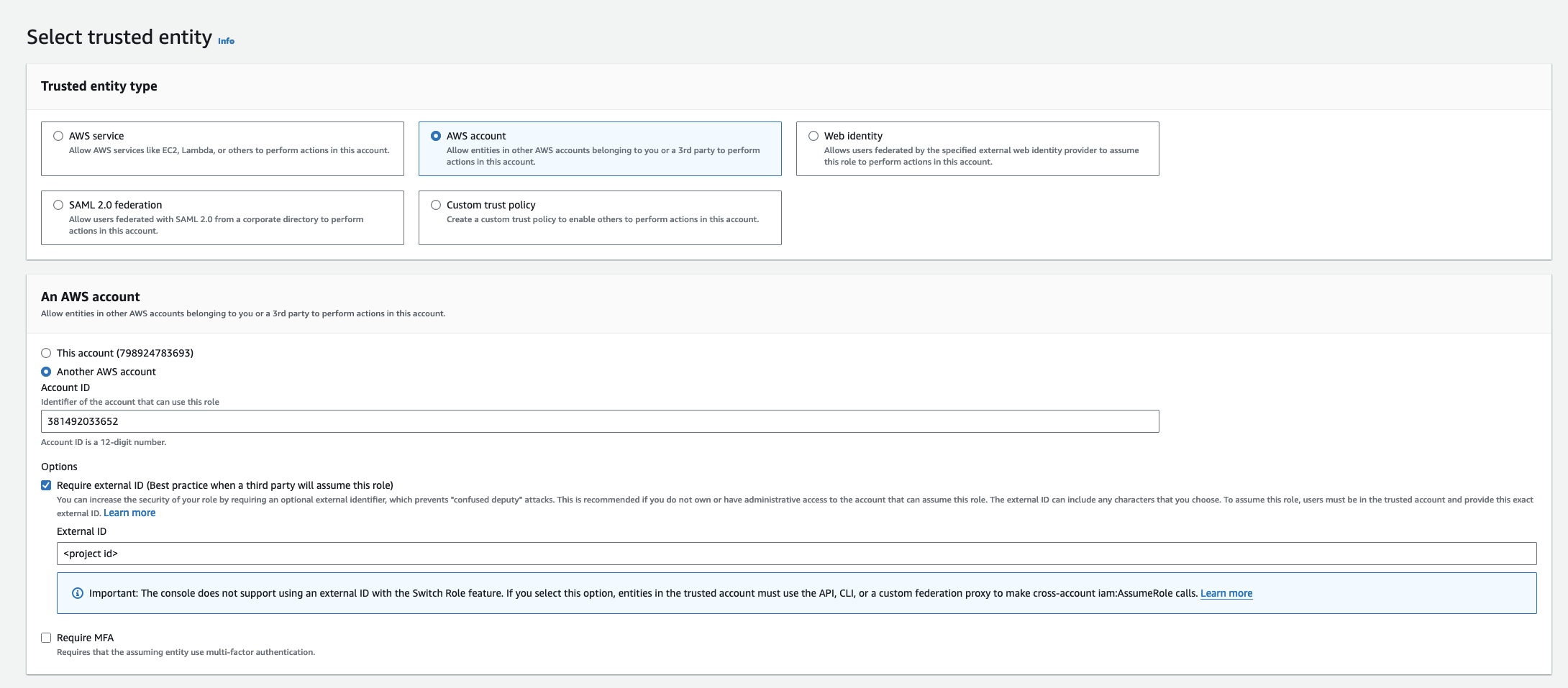
- Select AWS Account as the Trusted Entity Type.
- Choose Another AWS Account and enter 381492033652 (Infisical AWS Account ID). This restricts the role to be assumed only by Infisical. If you are self-hosting, provide the AWS account number where Infisical is hosted.
- Optionally, enable Require external ID and enter your Infisical project ID to further enhance security.
Setup AWS KMS in the Organization Settings
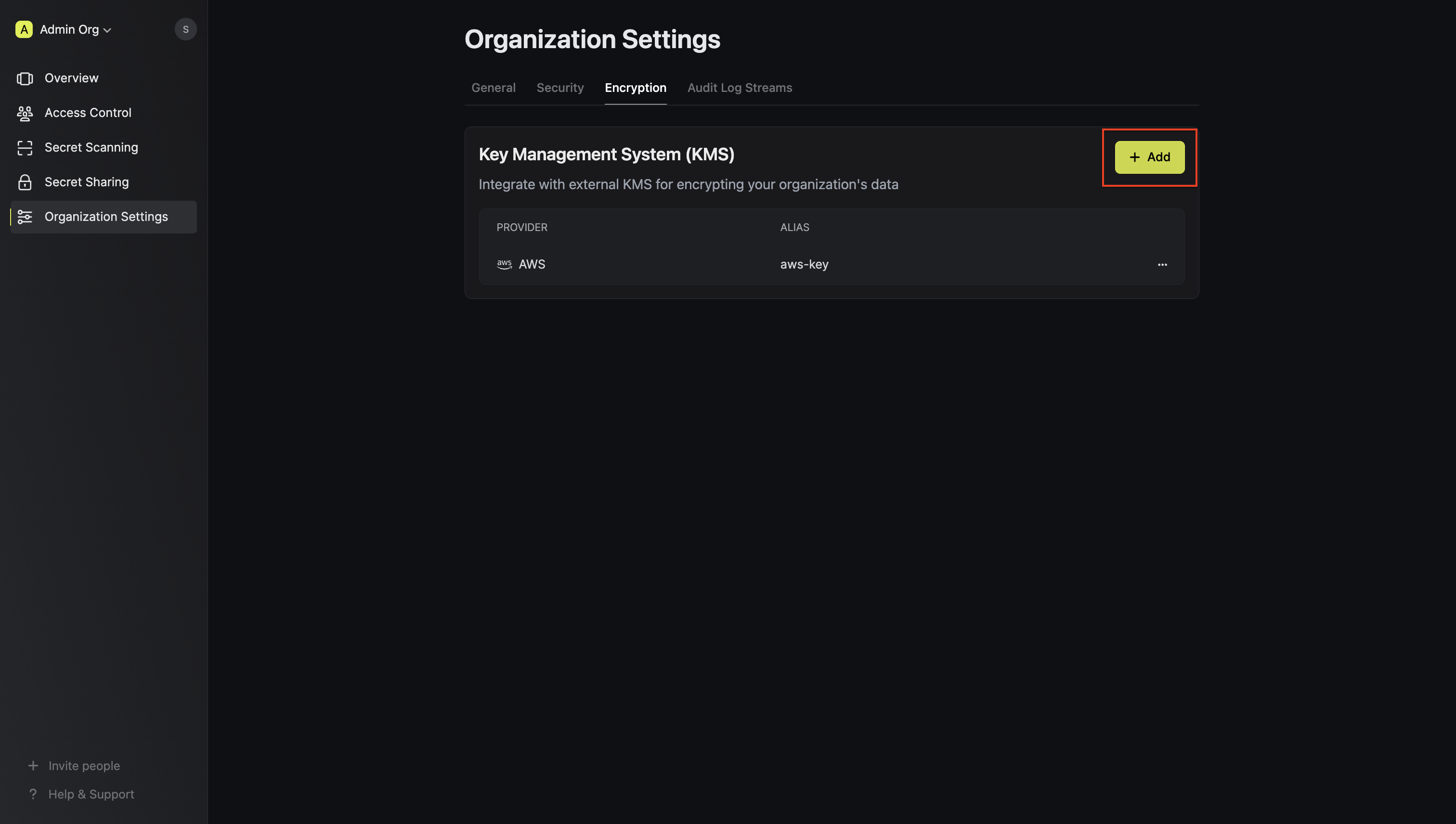
Next, you will need to follow the steps listed below to add AWS KMS for your organization.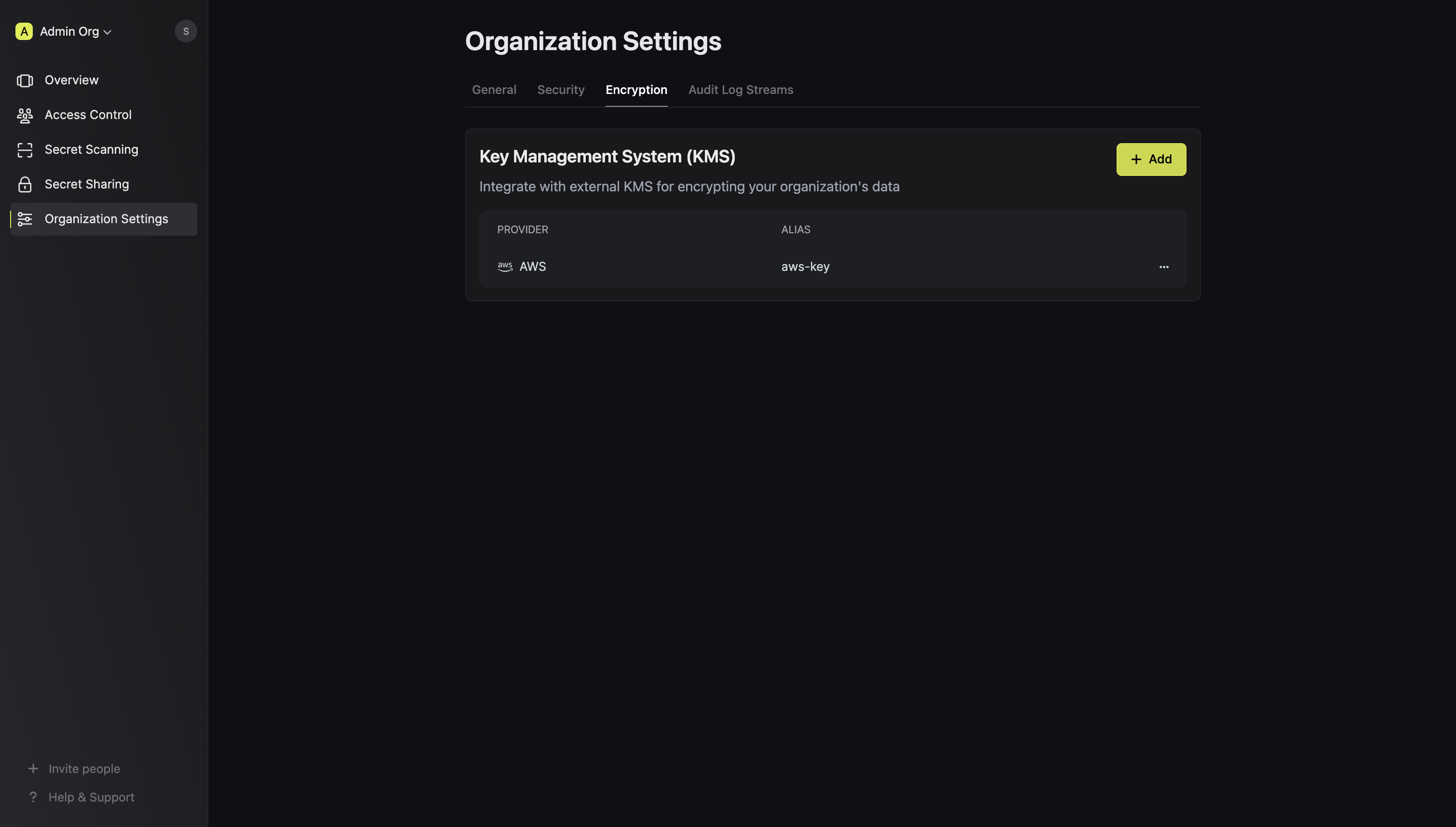
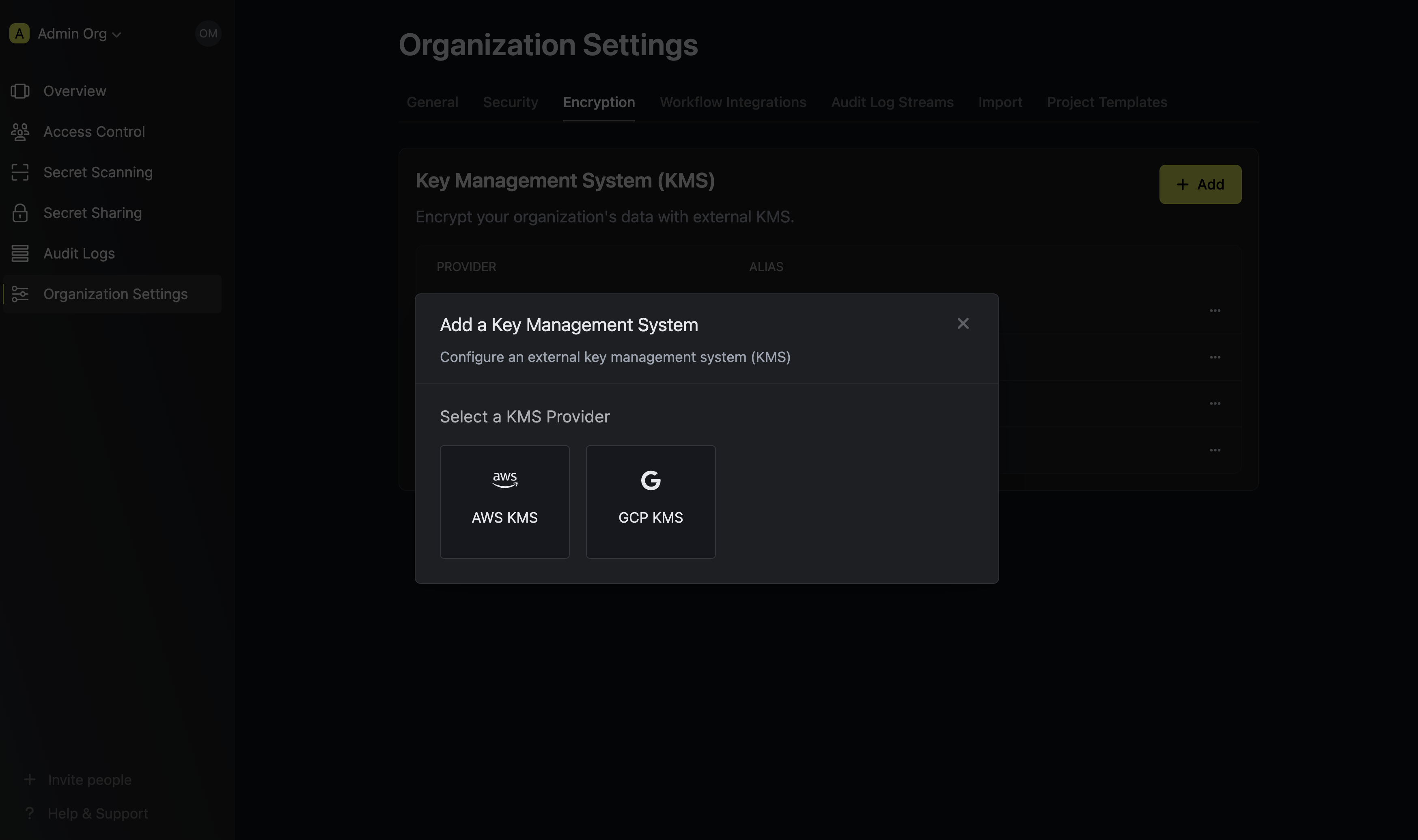
Provide the inputs for AWS KMS
Selecting AWS as the provider will require you input the following fields.
Name for referencing the AWS KMS key within the organization.
Short description of the AWS KMS key.
Authentication mode for AWS, either “AWS Assume Role” or “Access Key”.
ARN of the AWS role to assume for providing Infisical access to the AWS KMS Key (required if Authentication Mode is “AWS Assume Role”)
Custom identifier for additional validation during role assumption.
AWS IAM Access Key ID for authentication (required if Authentication Mode is “Access Key”).
AWS IAM Secret Access Key for authentication (required if Authentication Mode is “Access Key”).
AWS region where the AWS KMS Key is located.
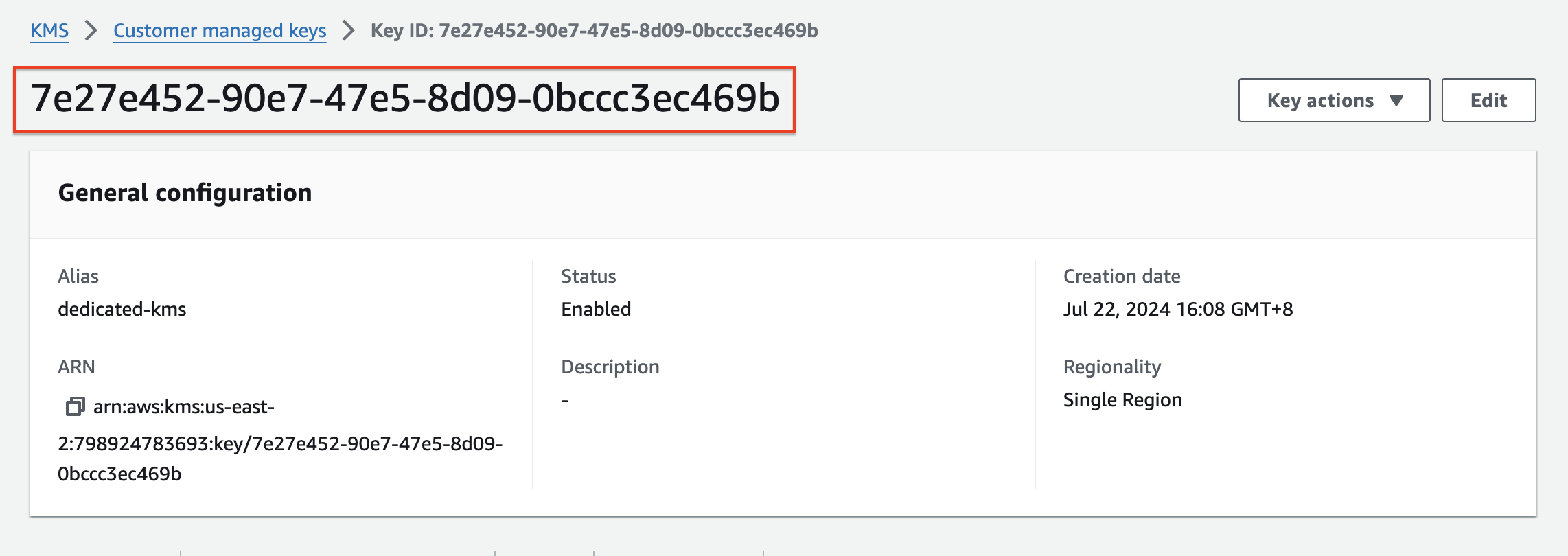
Key ID of the AWS KMS Key. If left blank, Infisical will generate and use a new AWS KMS Key in the specified region.