Setting up Slack integration in your projects
- Infisical Cloud
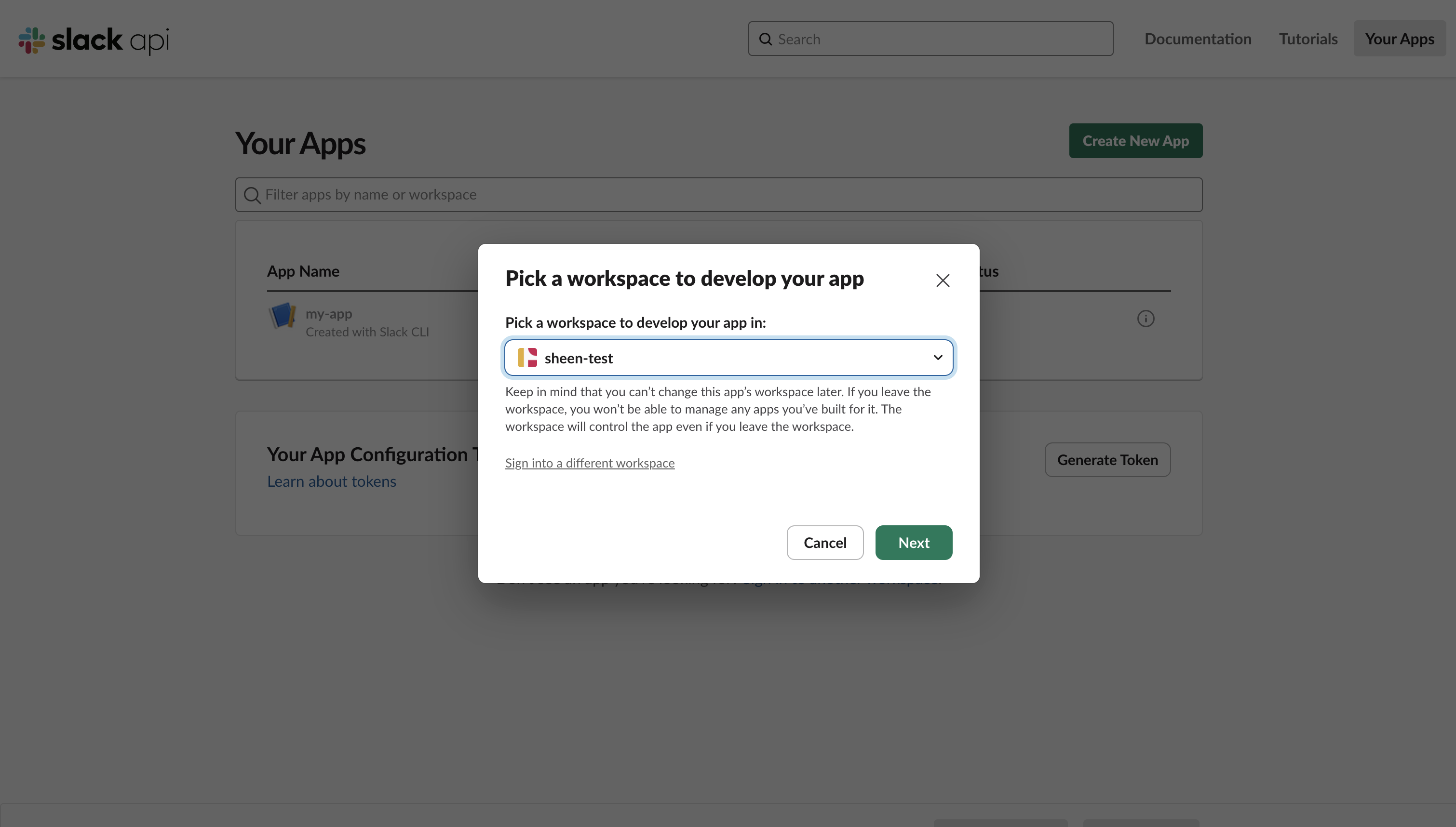
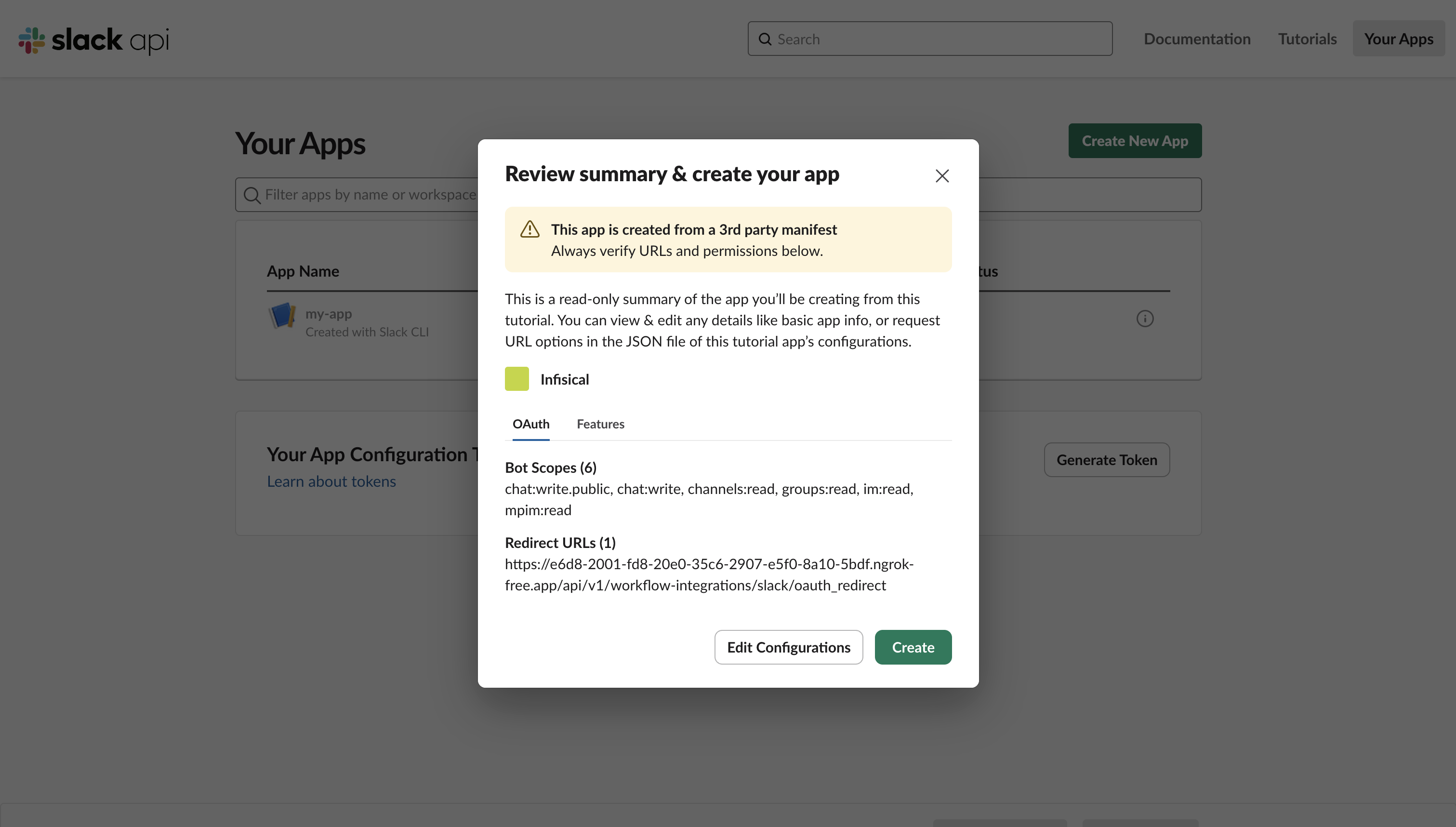
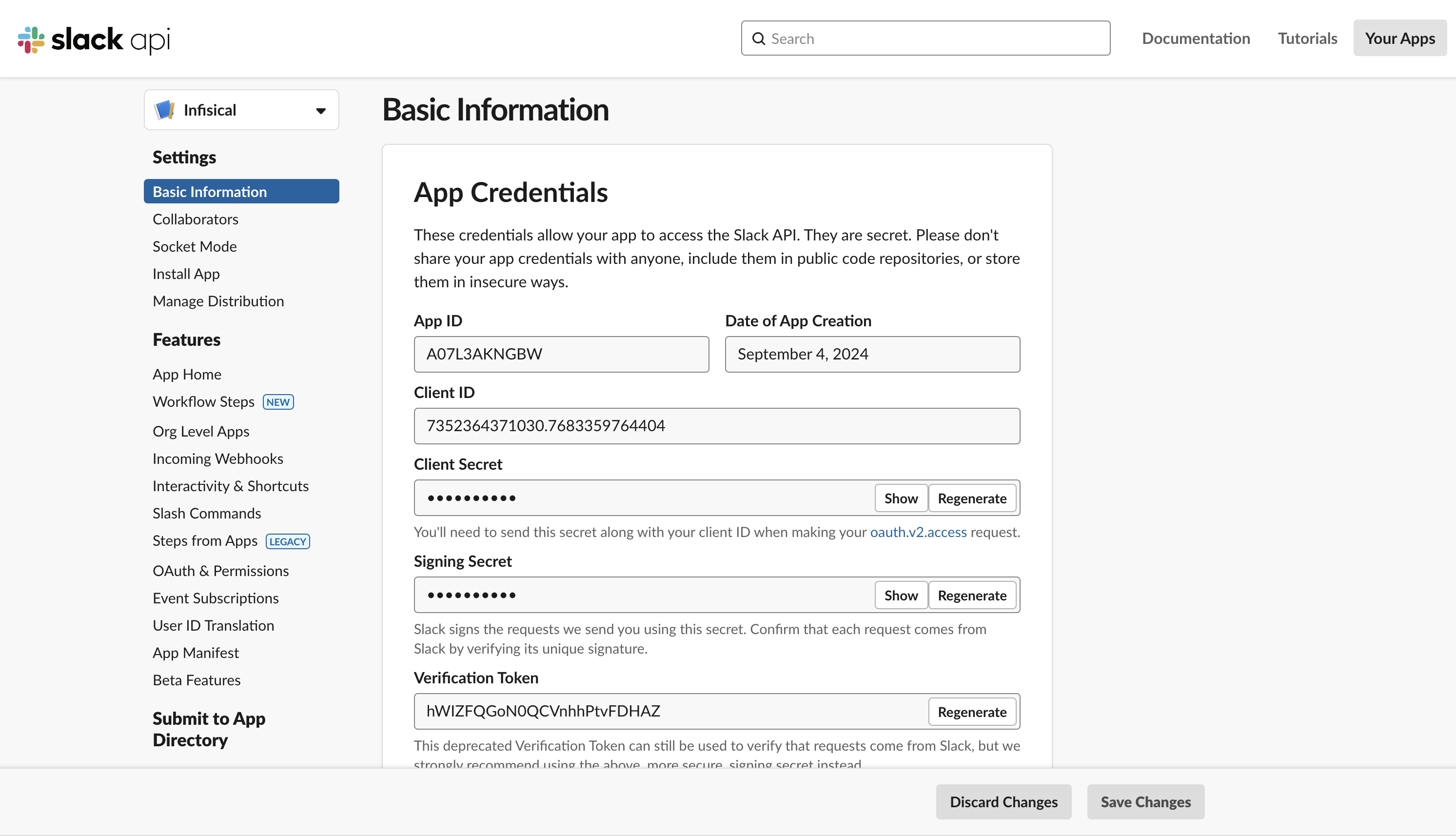
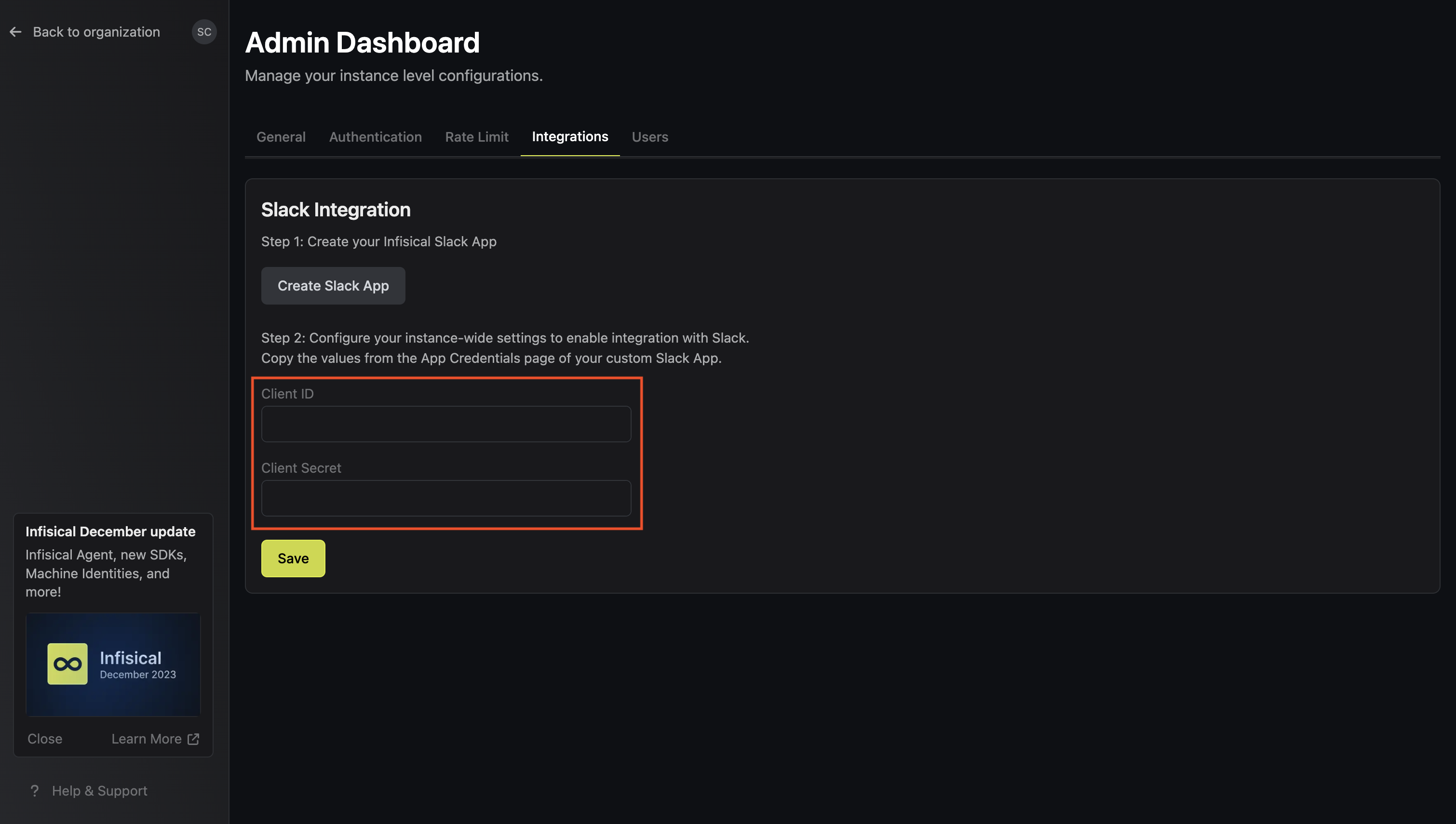
- Self-hosted setup
Create Slack workflow integration
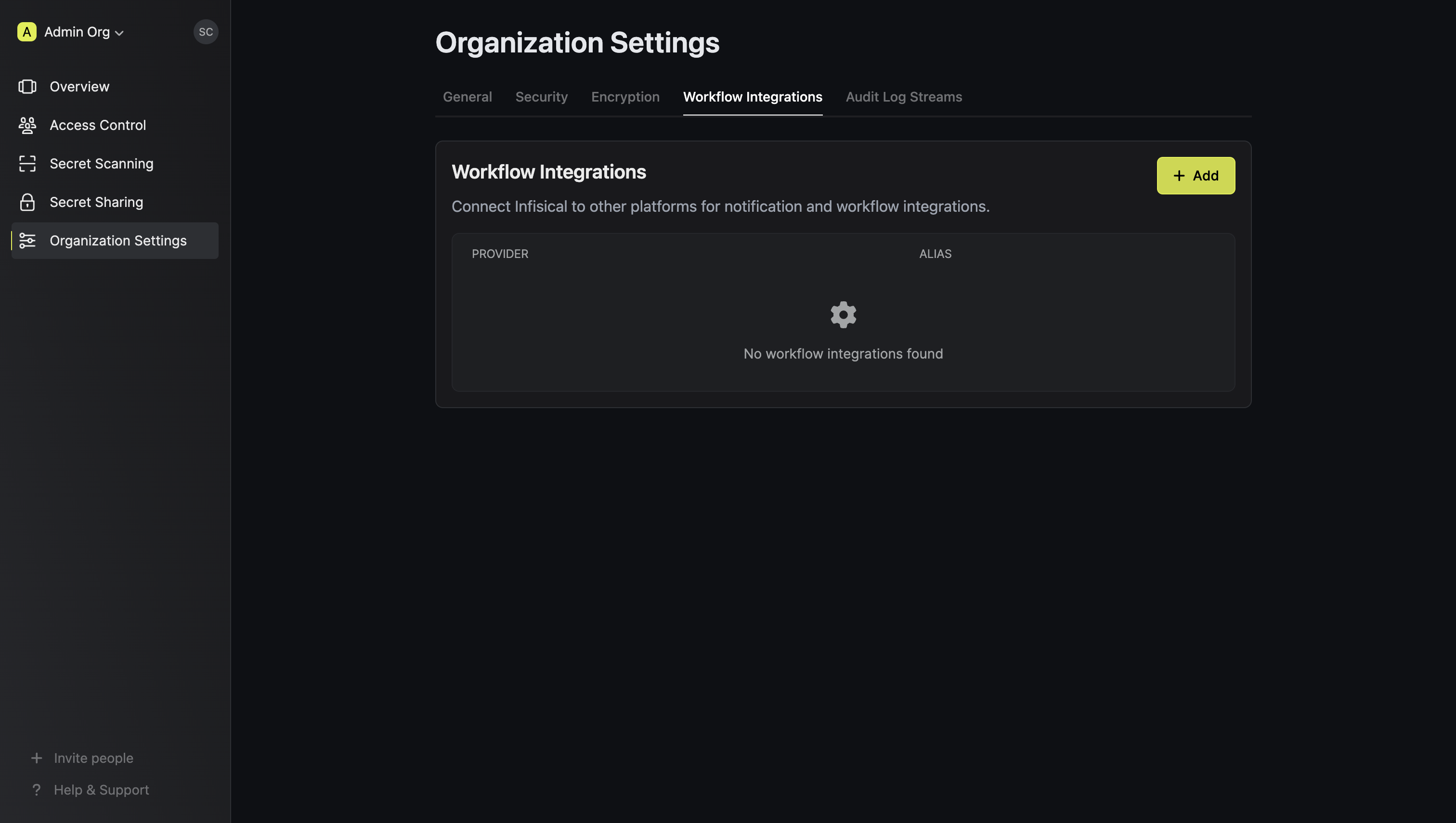
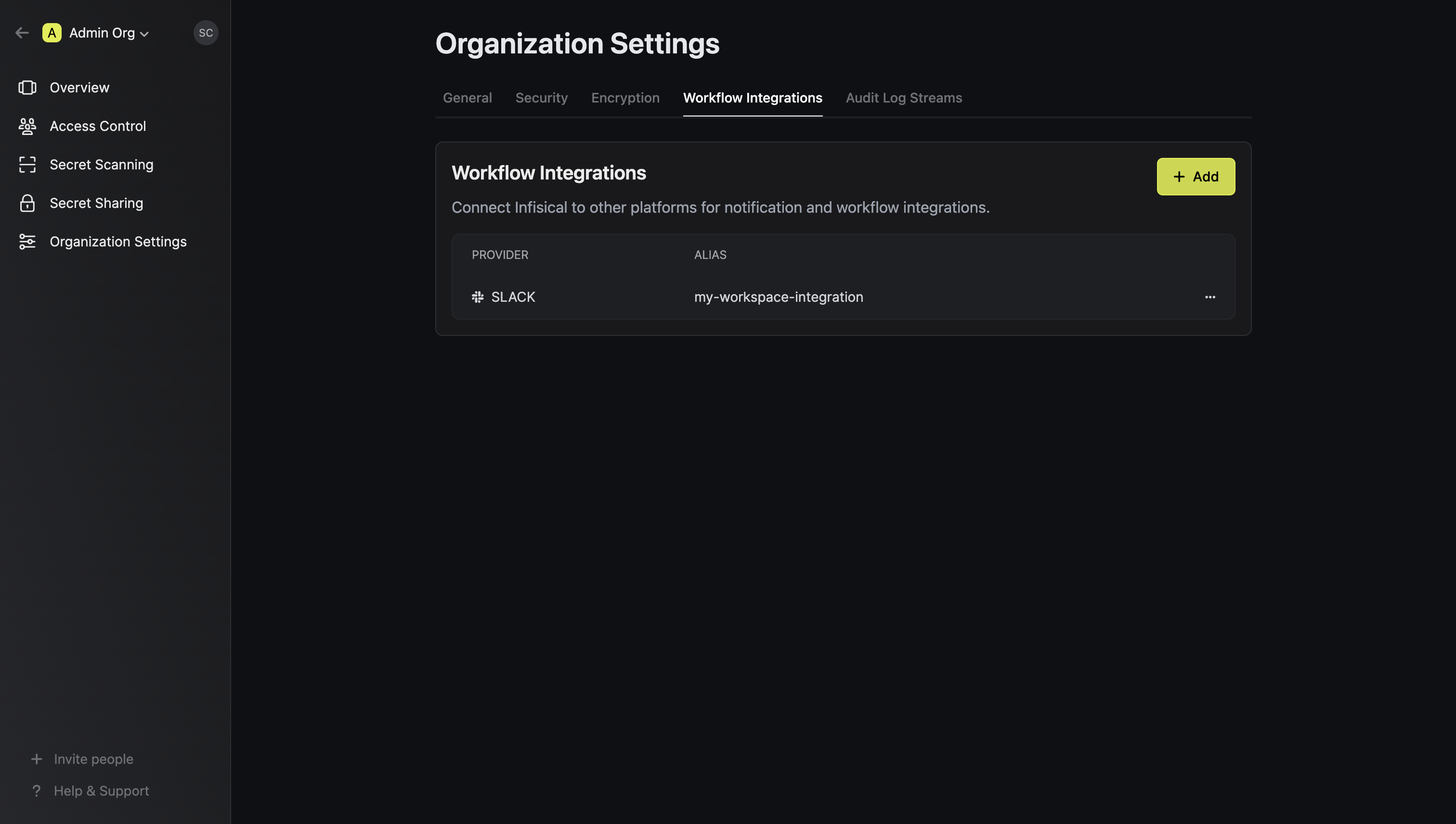
Navigate to the Workflow Integrations tab in your organization settings
In order to use Slack integration in your projects, you will first have to
configure a Slack workflow integration in your organization.
Install Slack app to workspace
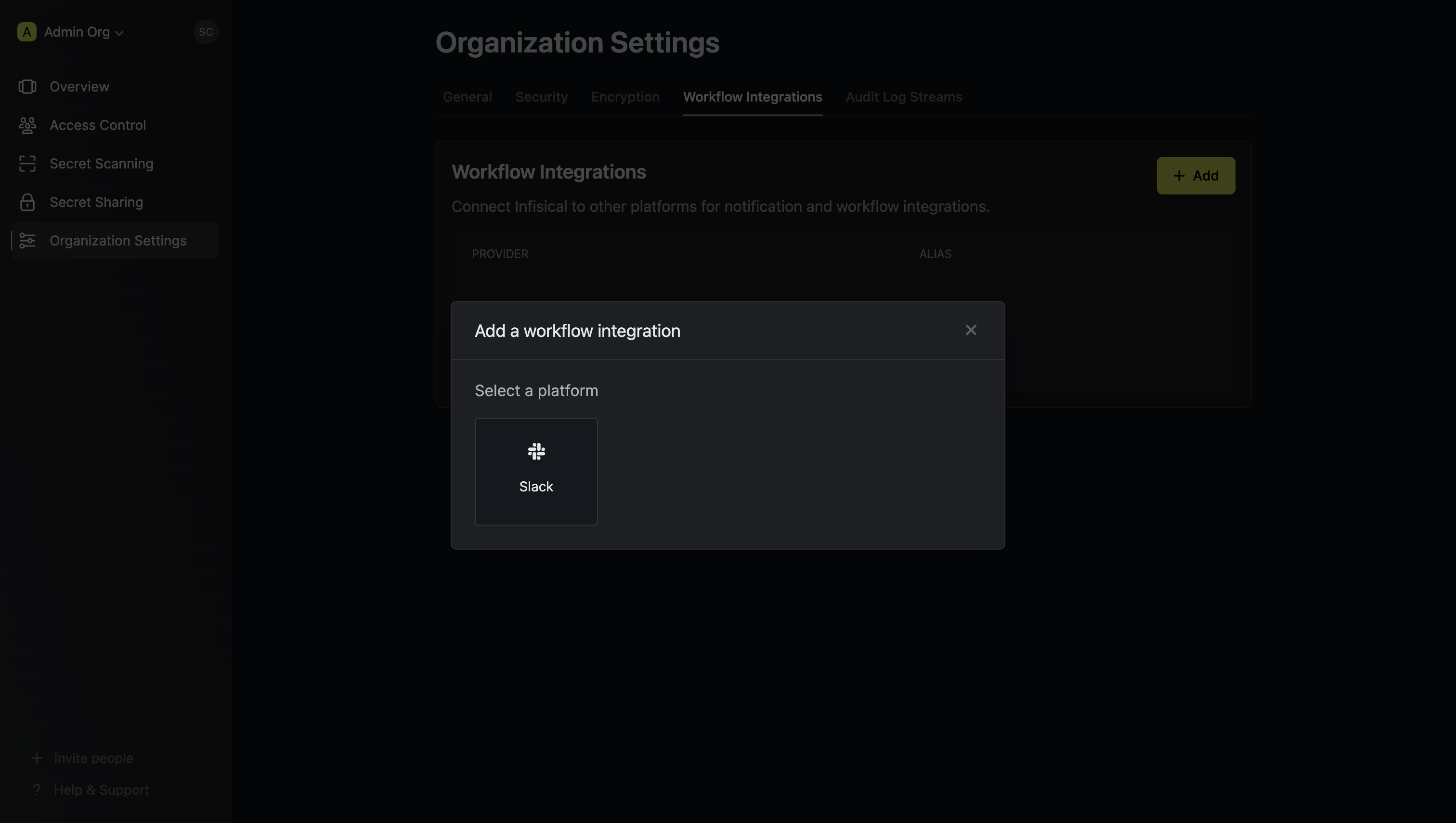
Press “Add” and select “Slack” as the platform.
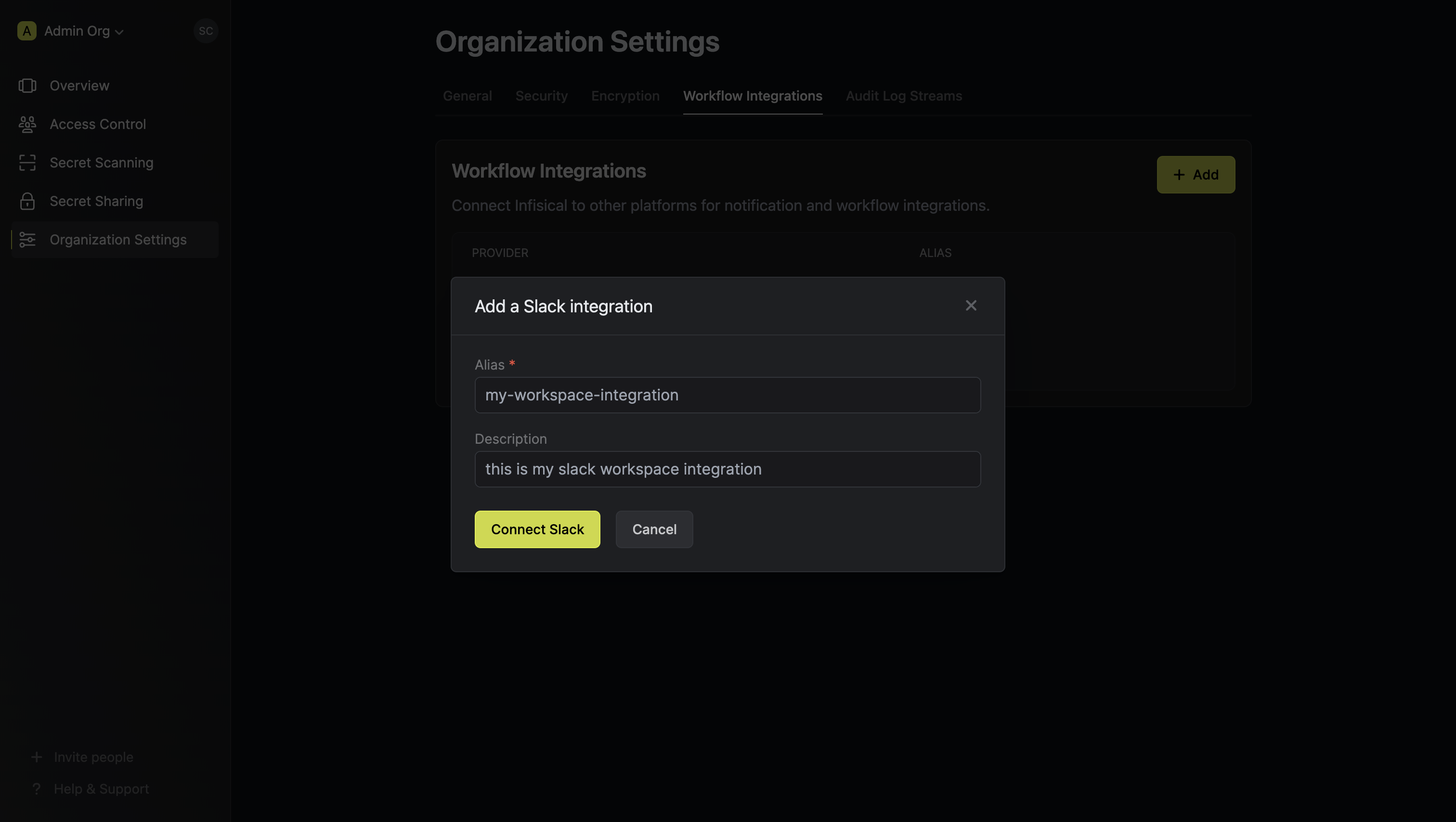
 Give your Slack integration a descriptive alias. You will use this to select the Slack integration for your project.
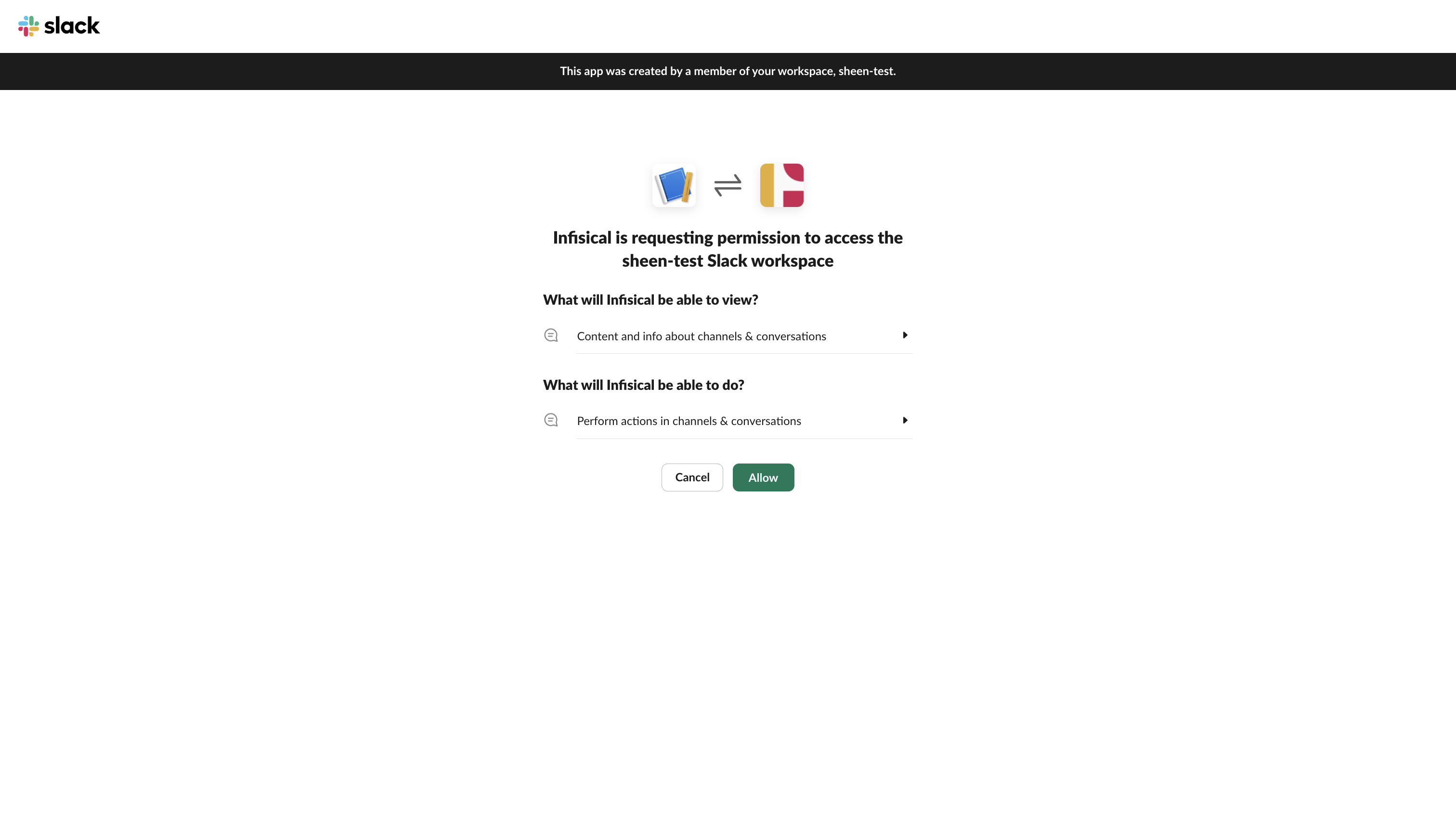
 Press Connect Slack. This opens up the Slack app installation flow. Select the Slack workspace you want to install the custom Slack app to and press Allow.
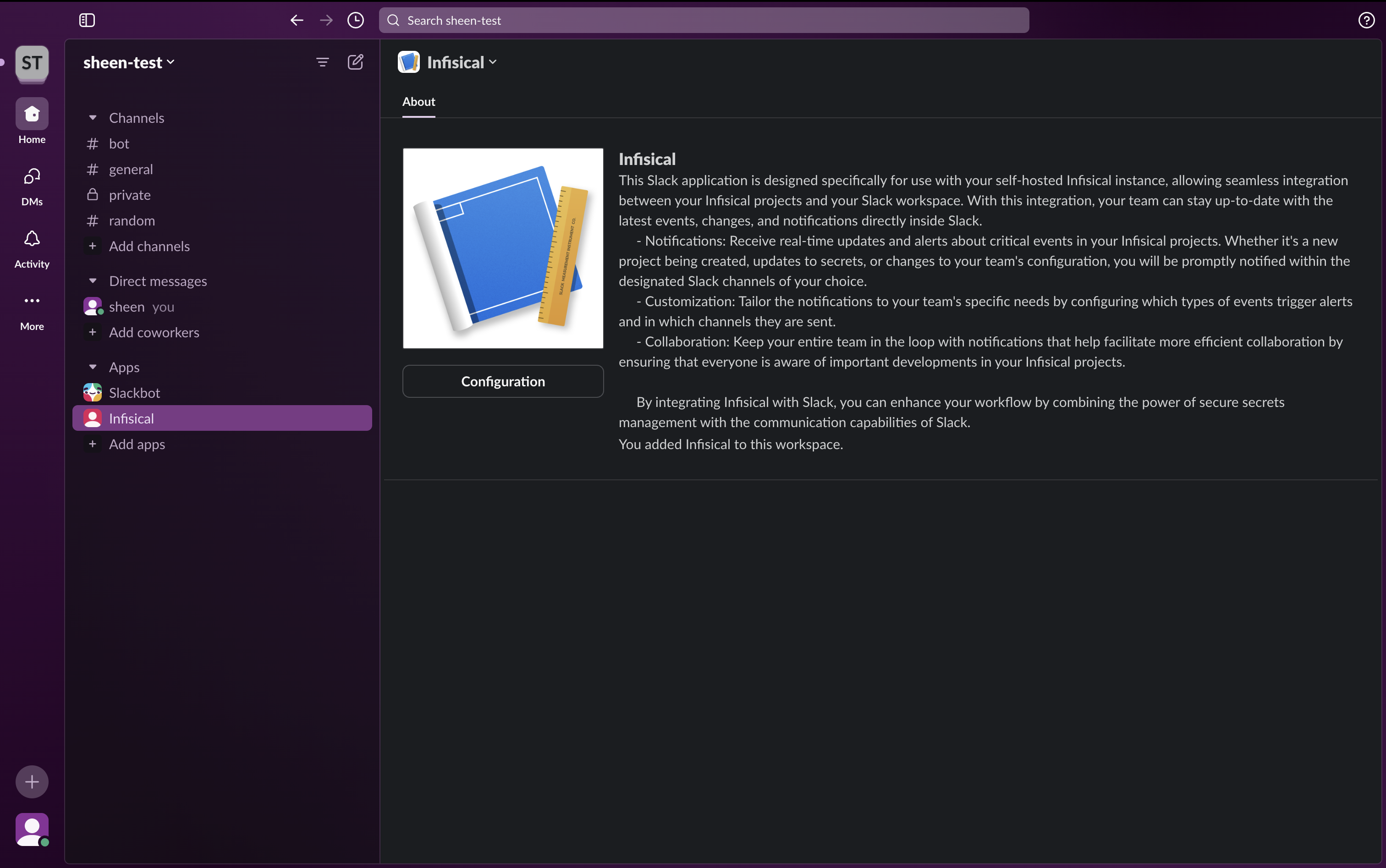
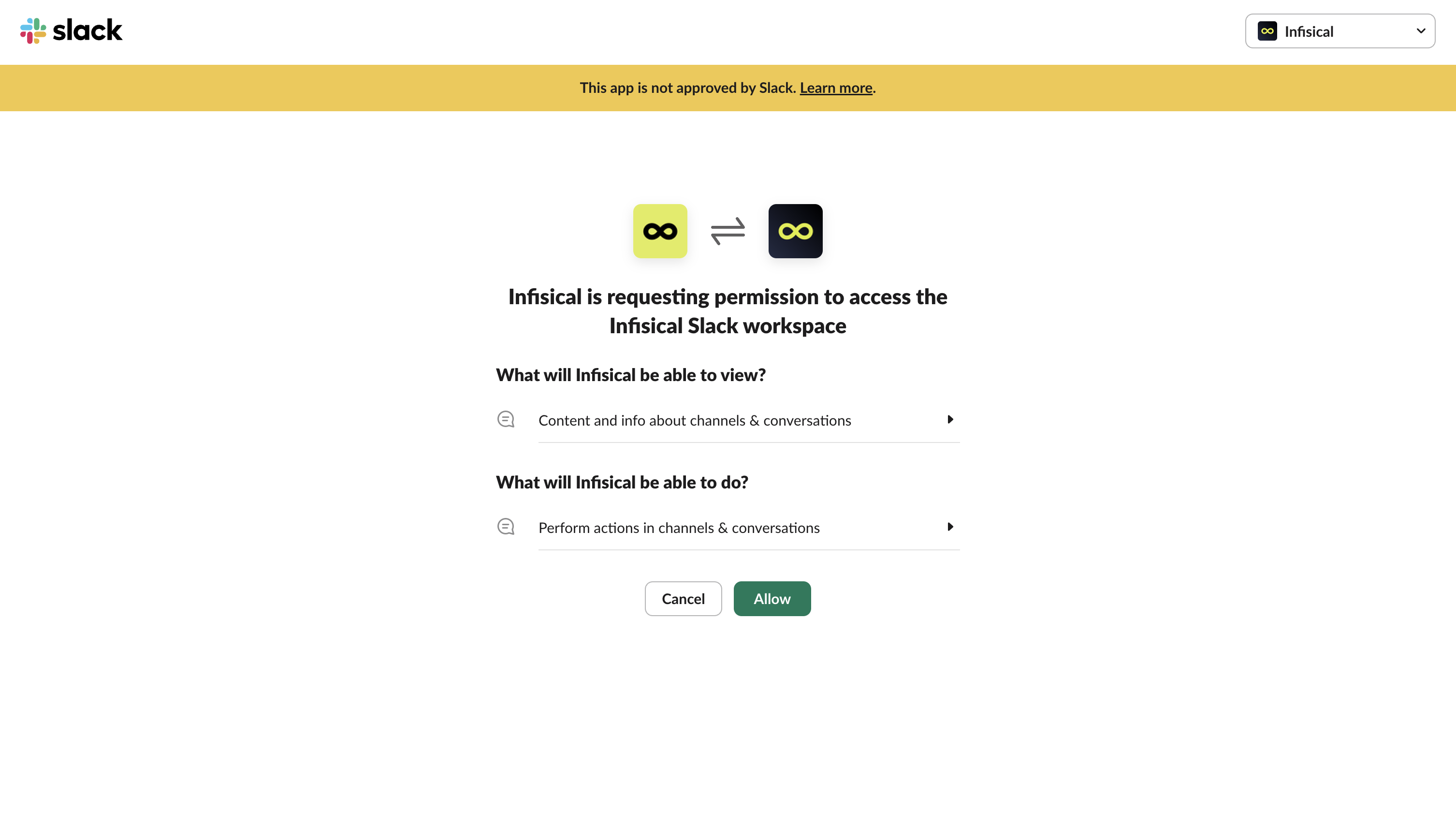 This completes the workflow integration creation flow. The projects in your organization can now use this Slack integration to send real-time updates to your Slack workspace.
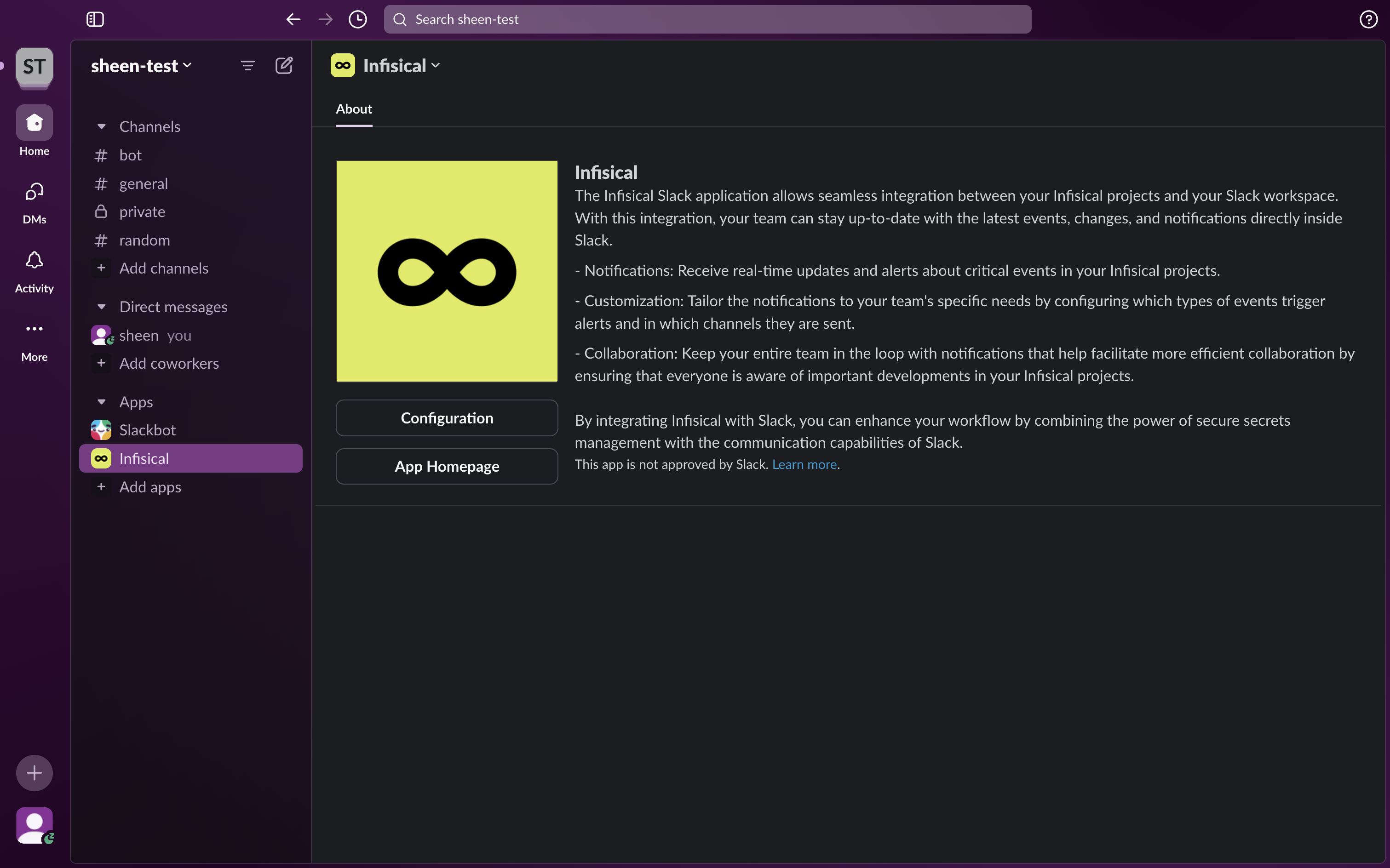
Give your Slack integration a descriptive alias. You will use this to select the Slack integration for your project.
Press Connect Slack. This opens up the Slack app installation flow. Select the Slack workspace you want to install the custom Slack app to and press Allow.
This completes the workflow integration creation flow. The projects in your organization can now use this Slack integration to send real-time updates to your Slack workspace.
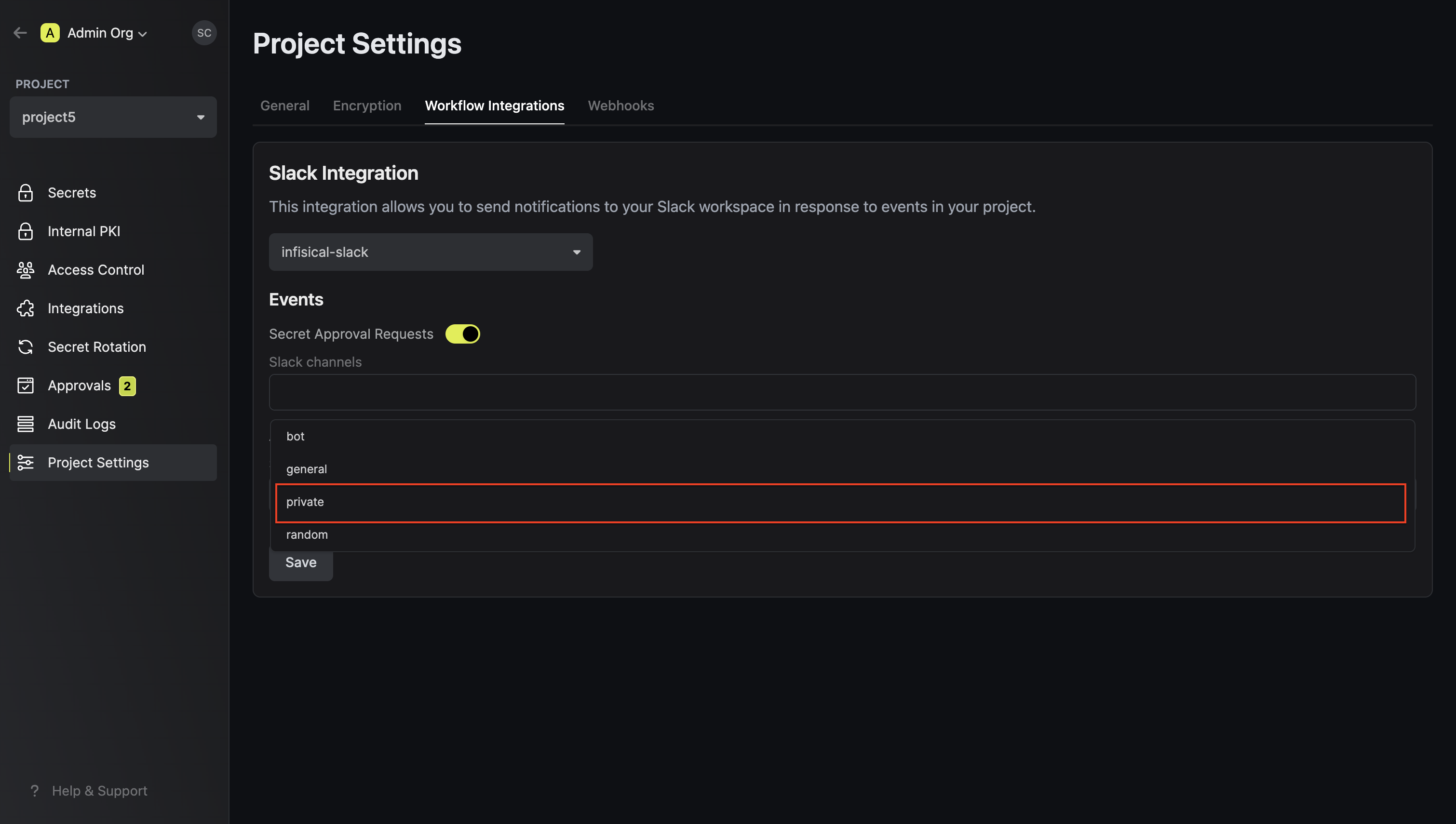
Configure project to use Slack workflow integration
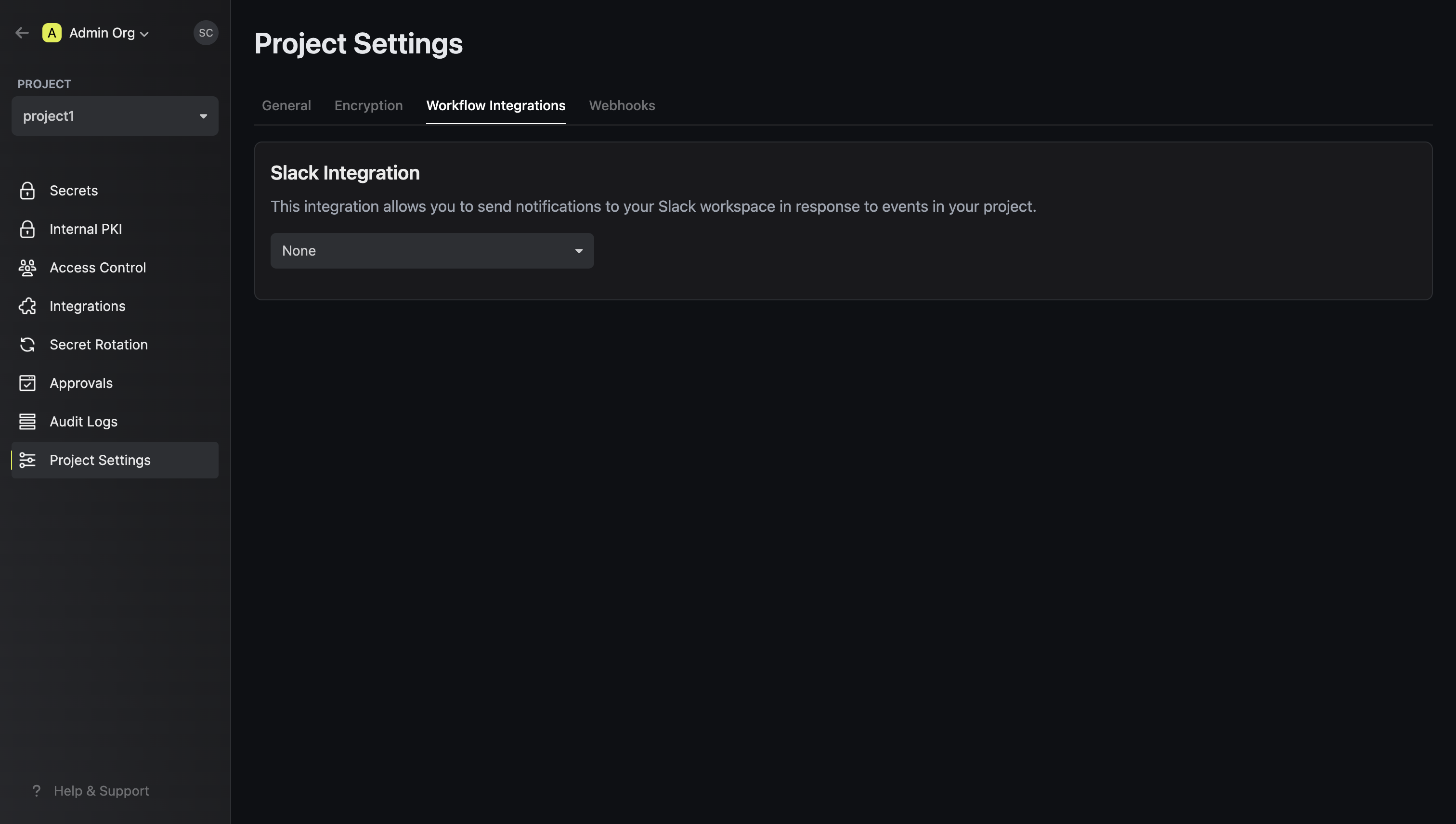
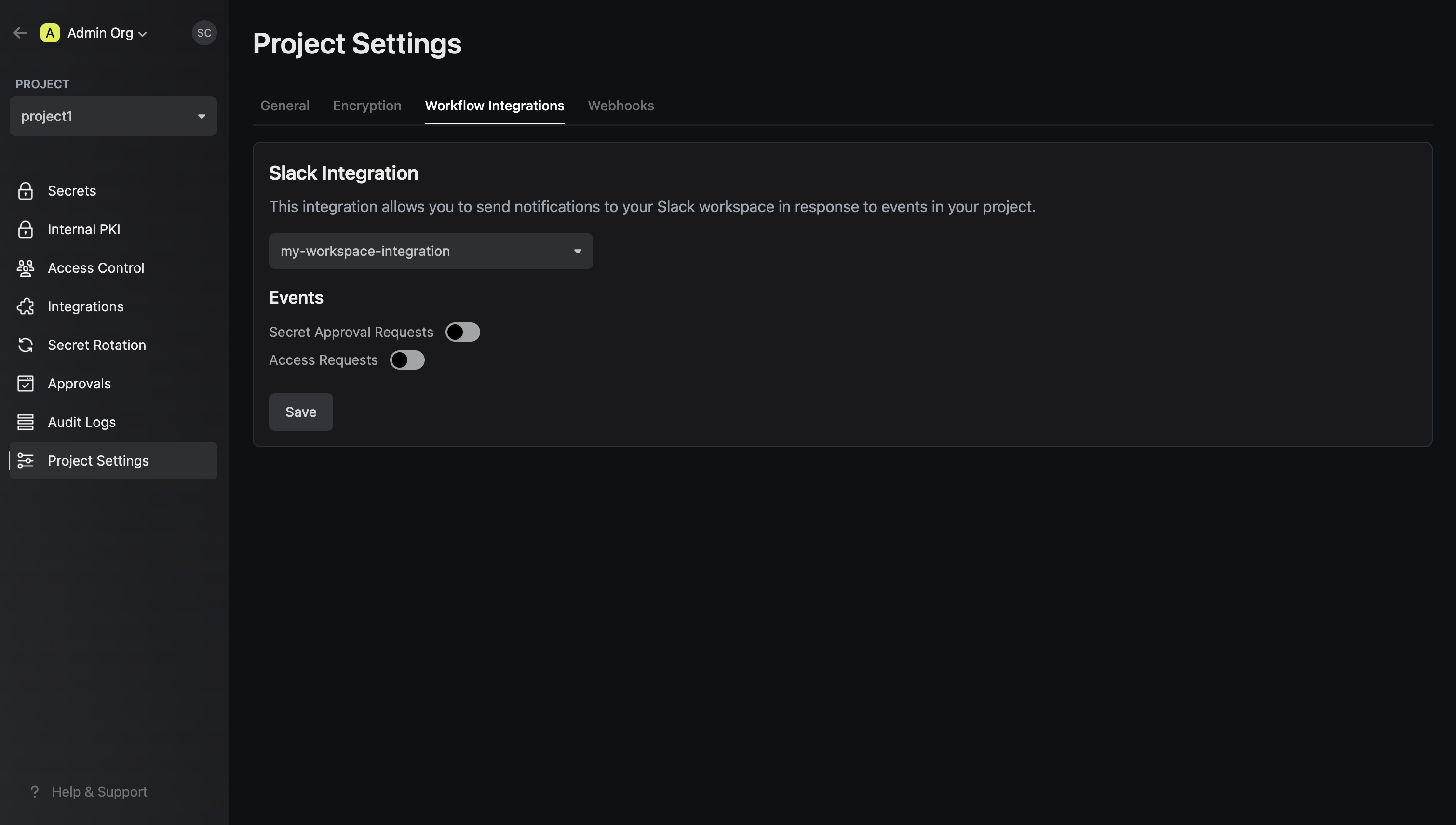
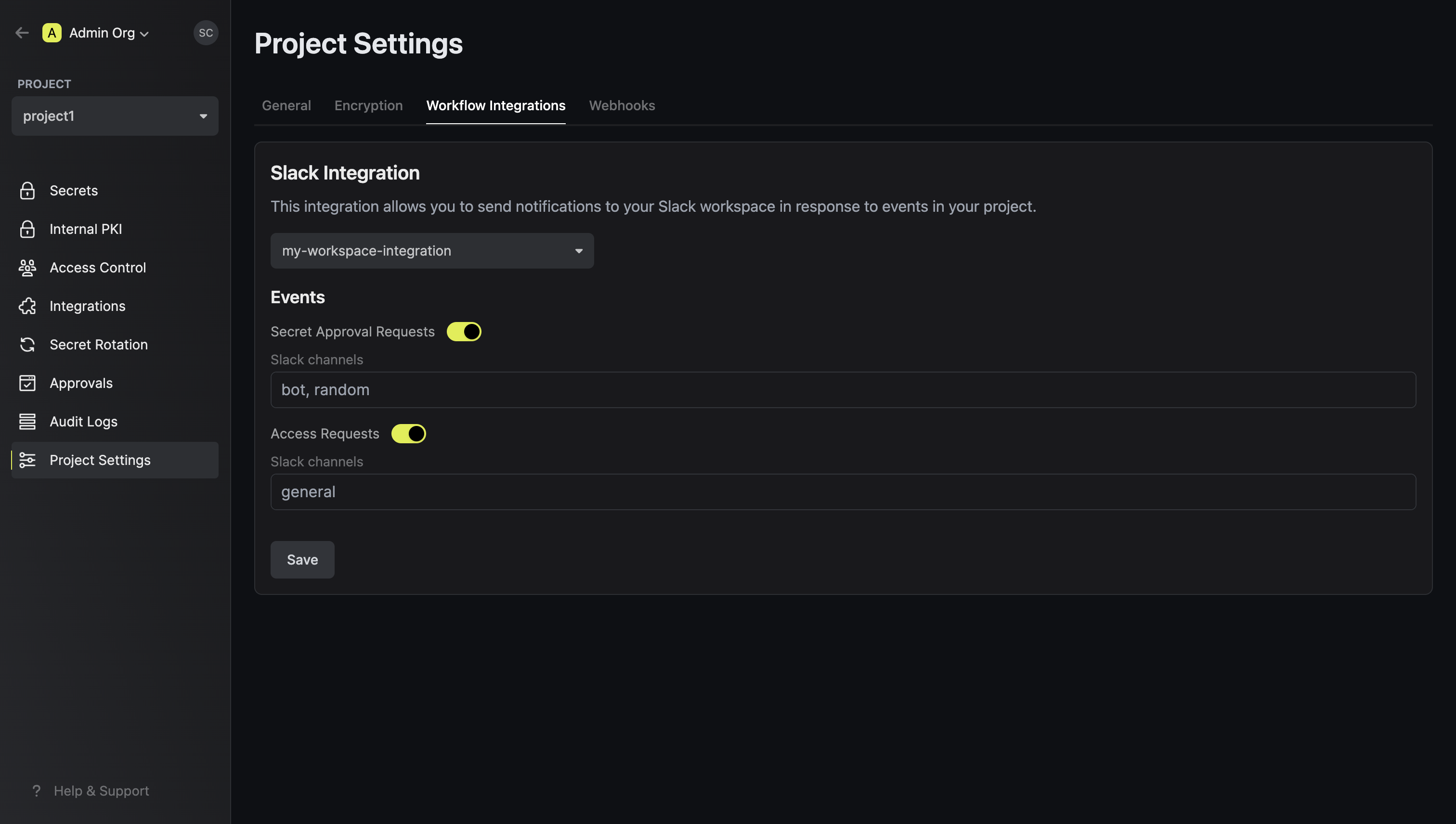
Select the Slack integration to use for the project
Your project will send notifications to the connected Slack workspace of the
selected Slack integration when the configured events are triggered.